Set up an AI assistant
TruckPaint can let an AI assistant draw on the open project, through a local MCP server. Ask it to recreate a livery from a reference photo, or to place a logo you give it. The assistant runs in your own MCP client, such as Claude Code or Claude Desktop: TruckPaint holds no API key and embeds no AI.
Turn on the server
Section titled “Turn on the server”- Open Preferences…: Edit › Preferences… on Windows and Linux, TruckPaint › Settings… on macOS.
- In the AI assistant (MCP) section, turn on Let an AI assistant draw on the open project.
- Click Copy next to the Address:
http://127.0.0.1:7373/mcp.
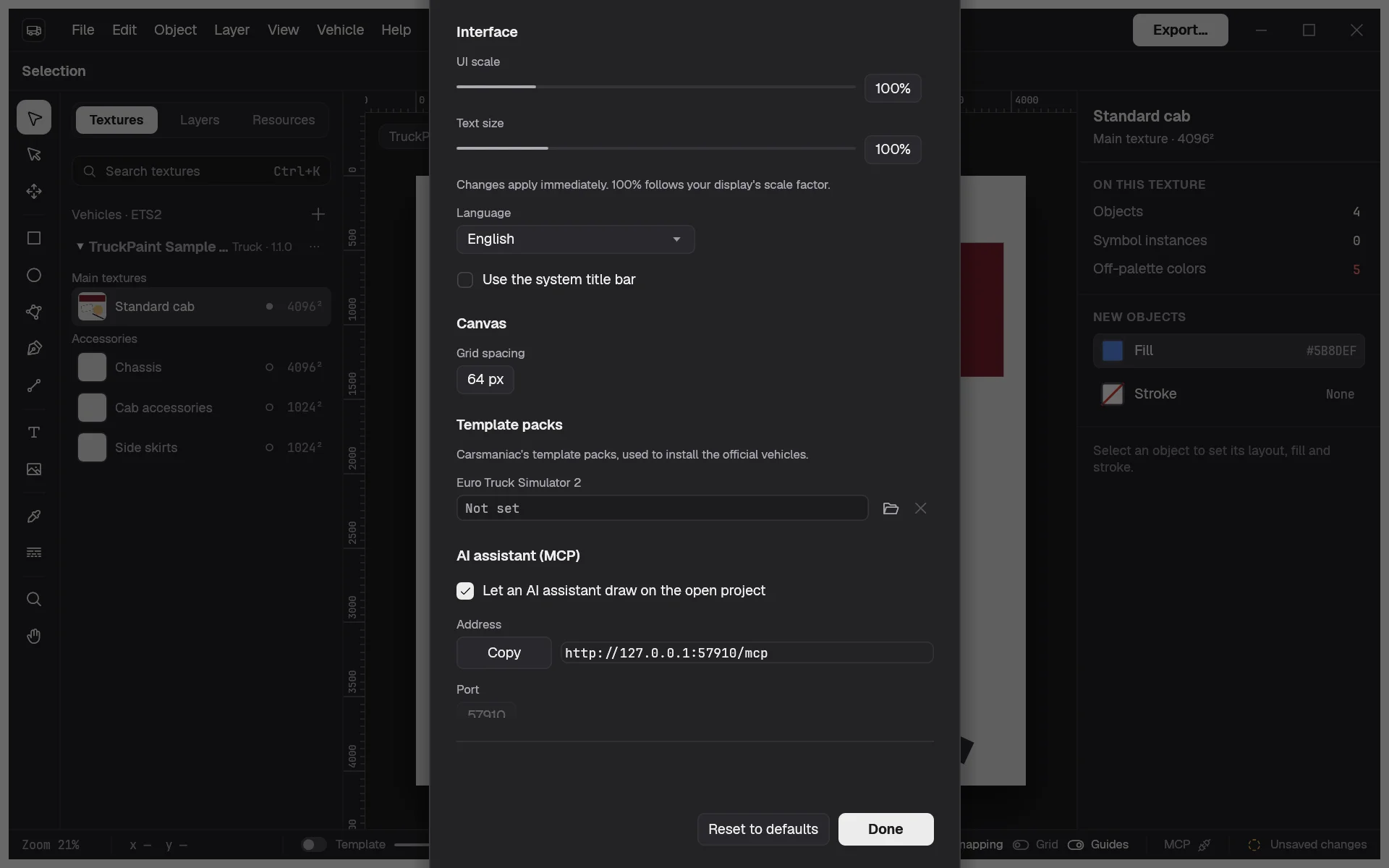
The server is off by default, and stays on across restarts once you turn it on. It runs only while TruckPaint is open.
The Port is 7373. If another program already uses it, Preferences says so: turn the server off, choose another port, and turn it on again. Remember to use the new port in your client too.
Add it to your client
Section titled “Add it to your client”Claude Code:
claude mcp add --transport http truckpaint http://127.0.0.1:7373/mcpClaude Desktop, or any client that only speaks stdio: go through mcp-remote, in claude_desktop_config.json:
{ "mcpServers": { "truckpaint": { "command": "npx", "args": ["mcp-remote", "http://127.0.0.1:7373/mcp"] } } }Any other client: use the Streamable HTTP transport at http://127.0.0.1:7373/mcp.
Ask it to paint
Section titled “Ask it to paint”Open a project in TruckPaint, then ask your assistant, for example:
- “Paint the Standard cab like this photo.”
- “Add a red stripe along the bottom of the Chassis, using the swatch Company red.”
- “Place my logo from this file on the Side skirts, centered.”
The assistant reads the project, looks at each texture’s template, draws shapes, SVG paths, texts and images in texture pixels, and renders the texture to check its work against your reference.
What it can and can’t do
Section titled “What it can and can’t do”It can read the project (vehicles, textures, palette, styles and symbols), list and inspect objects, see a texture’s template and artwork, add shapes, paths, texts and images, change, arrange, combine and delete objects, add swatches, apply styles and place symbols.
It can’t save, export or open files, open or close a project, or change your preferences. Saving and exporting stay with you: its changes mark the project as unsaved, like yours.
Every change it makes is one undo step labeled “AI: …”, so Undo takes it back. Your work comes first: a call that arrives while you drag, draw or type waits until you finish. While you edit a symbol, it can only read.
While the server is on, the status bar shows MCP, and how many changes the assistant made in the last minute. Click it to open its settings.
Privacy
Section titled “Privacy”- The server listens on your own computer only (
127.0.0.1), and refuses requests from web pages. - It is off until you turn it on, and you can turn it off at any time.
- TruckPaint sends nothing anywhere: what your assistant does with the project’s content depends on the client and AI service you use.