The Project space
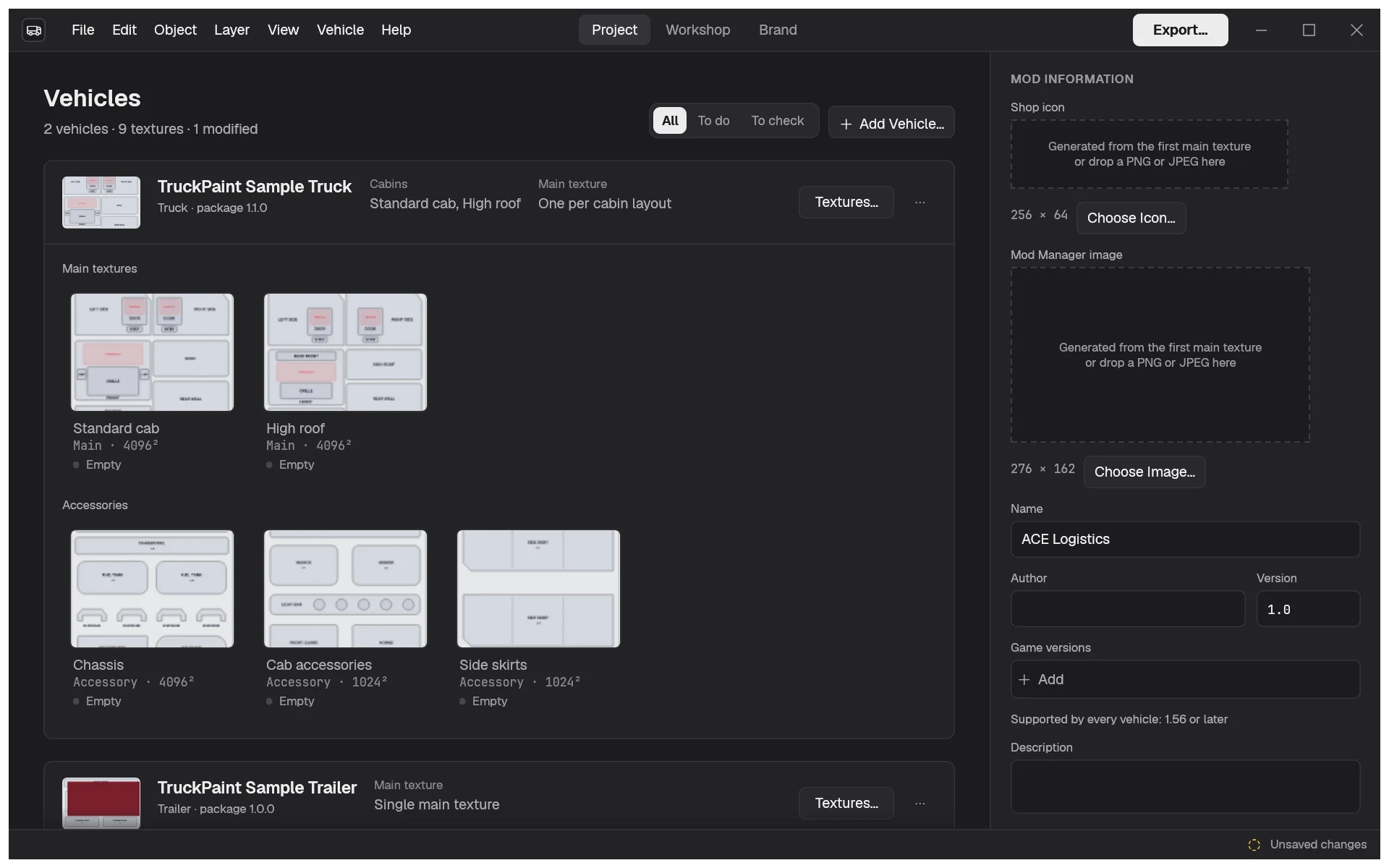
The Project space shows what your project paints and what it delivers. A project always opens there. On the left, your fleet: one card per vehicle, with its textures. On the right, the Mod information column, with the settings of the mod you will export.
Show it at any time with the top bar, or with View › Project (Ctrl+1, ⌘ on macOS).
Follow your progress
Section titled “Follow your progress”The Vehicles header counts the vehicles and textures of the project, and how many are Modified or To check. Each texture is in one of three states:
- Empty: nothing is painted on it yet. An empty texture is exported with the game’s color.
- Modified: it holds artwork.
- To check: a template update changed its layout, or the new version no longer has it. Hover the state to see why.
The filter in the header narrows the list: All, To do (textures that are empty or to check) or To check. It hides textures, never vehicles: a vehicle with nothing left shows Nothing to do.
Read a vehicle card
Section titled “Read a vehicle card”Each card shows:
- a thumbnail of the vehicle’s first painted main texture;
- its name, its kind and the version of its package. Hover the version to see which game versions it supports;
- for a truck, the Cabins it paints. Hover them to see the cabins’ internal names in the game;
- the Main texture mode, which comes from the vehicle and can’t be changed: One per cabin layout, One for every cabin or Single main texture for a trailer;
- when a newer version of the vehicle is installed, a notice with Update Template…;
- Textures…, to choose which textures of the vehicle the project paints, and a ⋯ menu that also holds Remove from Project;
- the vehicle’s textures, under Main textures and Accessories, each with a thumbnail, its kind, its size and its state.
Click a texture to open it in the Workshop and paint on it.
To add a vehicle, click Add Vehicle… in the header. Adding and removing vehicles and textures is explained in Trucks and trailers.
Fill in the mod’s information
Section titled “Fill in the mod’s information”The Mod information column holds what the game shows about your mod:
- the Shop icon and the Mod Manager image, generated from your first main texture, or chosen with Choose Icon… and Choose Image…. You can also drop a PNG or JPEG file on a picture;
- Name, Author, Version, Description, Price and Unlock level;
- the Game versions the mod is made for, such as
1.56.*. Under them, TruckPaint shows the versions every vehicle of the fleet supports; - Advanced, which holds the internal name of the paint job.
A field takes effect when you press Enter or leave it, and each change can be undone. Escape puts the field back as it was.
At the bottom, Before exporting lists what blocks the export, then what deserves a look, such as empty textures. Show takes you to the field or the vehicle to fix, and Open opens a texture in the Workshop. When everything is fine, it reads Nothing to check.
The game of the project isn’t listed: it is set by the first vehicle and shown in the top bar. When the fleet is ready, click Export… in the top bar: see Export the mod.