Your first project
In TruckPaint, a project is the paint job of a fleet: one or more trucks and trailers of one game, ETS2 or ATS, exported together as one mod. Every project starts from a vehicle, because a livery has to fit a vehicle’s textures: there is no blank project.
This page uses the TruckPaint Sample Truck, which comes with the app and needs no game files. It works the same with any other vehicle.
Create your first project
Section titled “Create your first project”-
On the home screen, click New Project (Ctrl+N, ⌘ on macOS).
-
Under Game, keep ETS2: the sample vehicles are made for it. The list only shows the vehicles of the game you choose.
-
If no vehicle is installed yet, click Install the sample vehicles under the list. It installs the sample truck and the sample trailer, without any download.
-
Click the TruckPaint Sample Truck row to check it. Its card opens on the right, under Your fleet.
-
Check what you want to paint on the card:
- under Cabins, one chip per cabin layout of the truck. The first one is checked; click another to paint it too;
- under Accessories, the accessories, all checked at first.
Textures created lists every texture the project will get, with its size.
-
Type a Project name, or leave it empty to name the project after the vehicle.
-
Click Create Project.
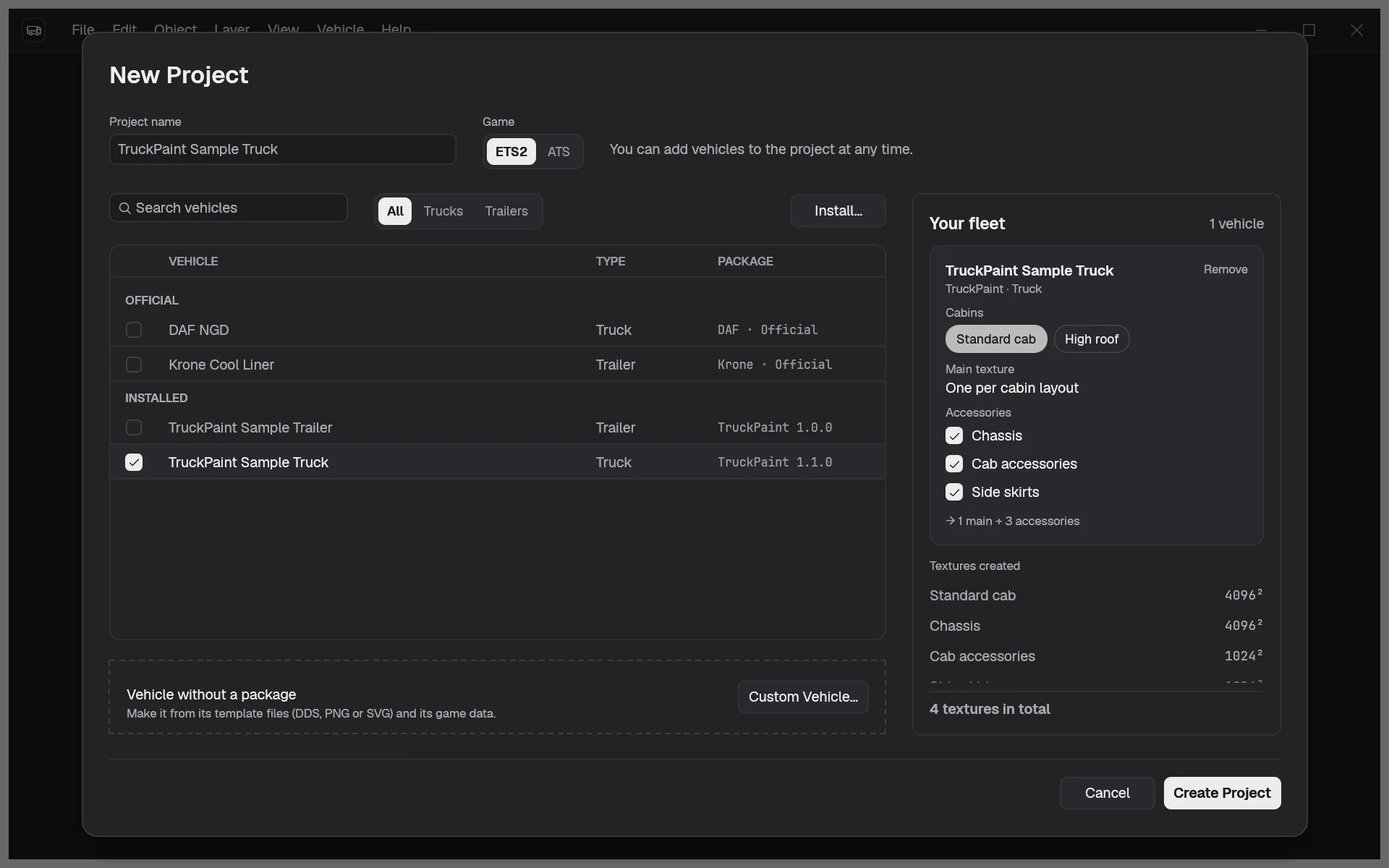
You can check several vehicles at once, trucks and trailers, and you can add more later: nothing you choose here is final. See Trucks and trailers.
Look around
Section titled “Look around”The project opens in the Project space: your fleet on the left, with one card per vehicle and a row per texture, and the information of the mod on the right.
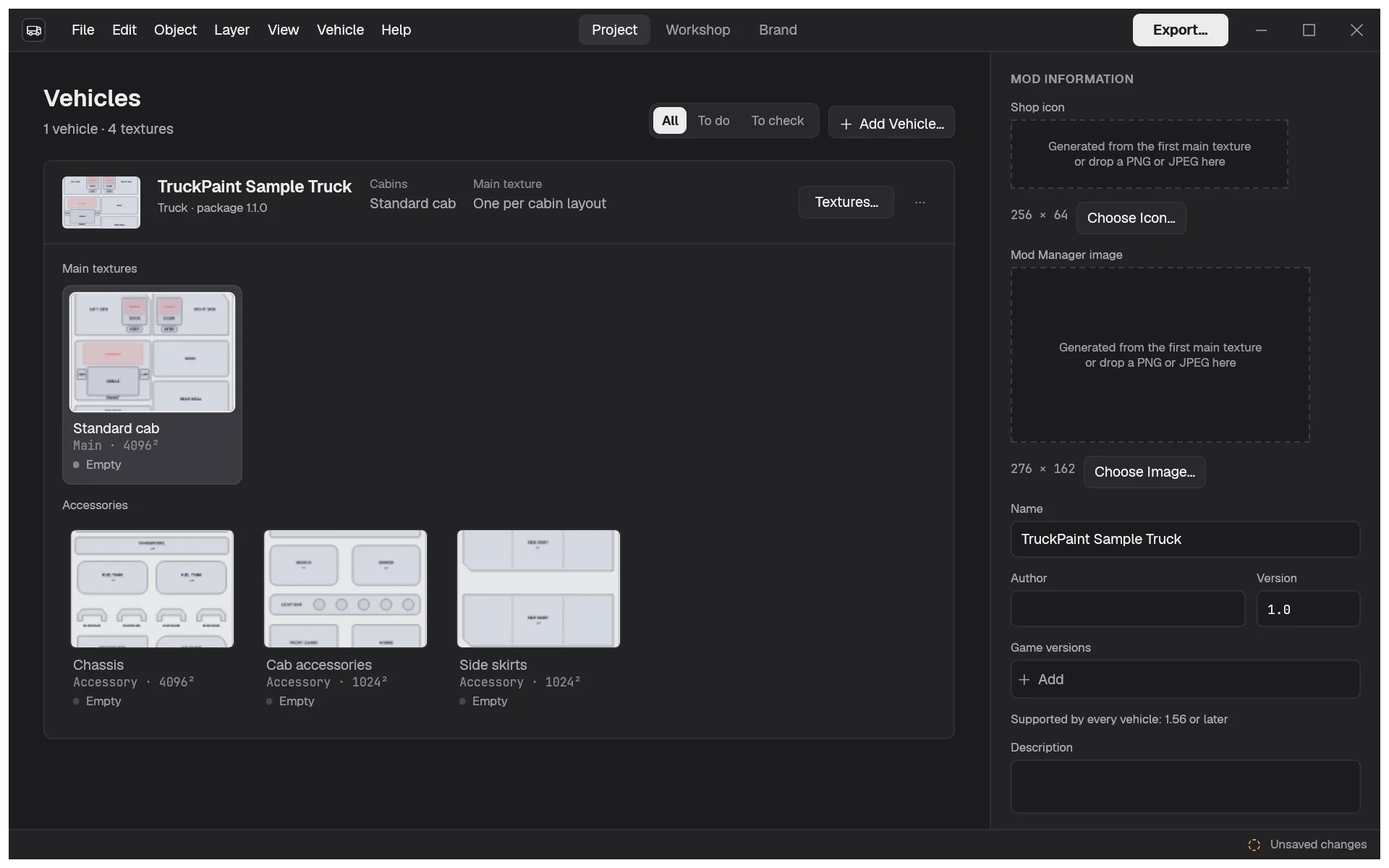
Every texture starts Empty. Click one to open it in the Workshop, where you paint on it over the vehicle’s template. The top bar switches between the three spaces at any time: Project (Ctrl+1), Workshop (Ctrl+2) and Brand (Ctrl+3). The game of the project is shown next to its name, and can’t be changed.
Save your project
Section titled “Save your project”Choose File › Save (Ctrl+S). The first time, TruckPaint asks where to save, and proposes the project’s name. A project is one .truckpaint file that holds everything, templates included: you can open it on another computer even if its vehicles aren’t installed there.
The status bar shows Saved or Unsaved changes. If you close the project or quit with unsaved changes, TruckPaint asks whether to save them first.
Next steps
Section titled “Next steps”- The Project space, to understand what it shows.
- Vector tools, to start painting.
- The brand palette, to share your company colors across the fleet.
- Export the mod, when the livery is ready.