Official vehicles
TruckPaint knows the game data of the official vehicles: their cabins, their accessories and their place in the game’s files. You don’t type any of it. What TruckPaint doesn’t ship are the templates, which belong to SCS Software. It takes them from the template pack made by Carsmaniac, which you download once per game.
Which vehicles are available
Section titled “Which vehicles are available”The official vehicles are listed first in New Project and in Add Vehicle…, under Official, whether they are installed or not. For now, the catalog holds two ETS2 vehicles:
- the DAF NGD, a truck with three cabin layouts (XG+, XG and XF) and four accessories: sun visor, side skirts, standard mirrors and camera mirrors;
- the Krone Cool Liner, a trailer whose body texture (8192 × 1024) also paints its body accessories, with four chassis accessories. Its rear bumper is left out: the pack has no template for it.
More vehicles of both games will be added in batches. The list needs no network access.
Install your first official vehicle
Section titled “Install your first official vehicle”The first time you check an official vehicle of a game, TruckPaint asks for that game’s template pack.
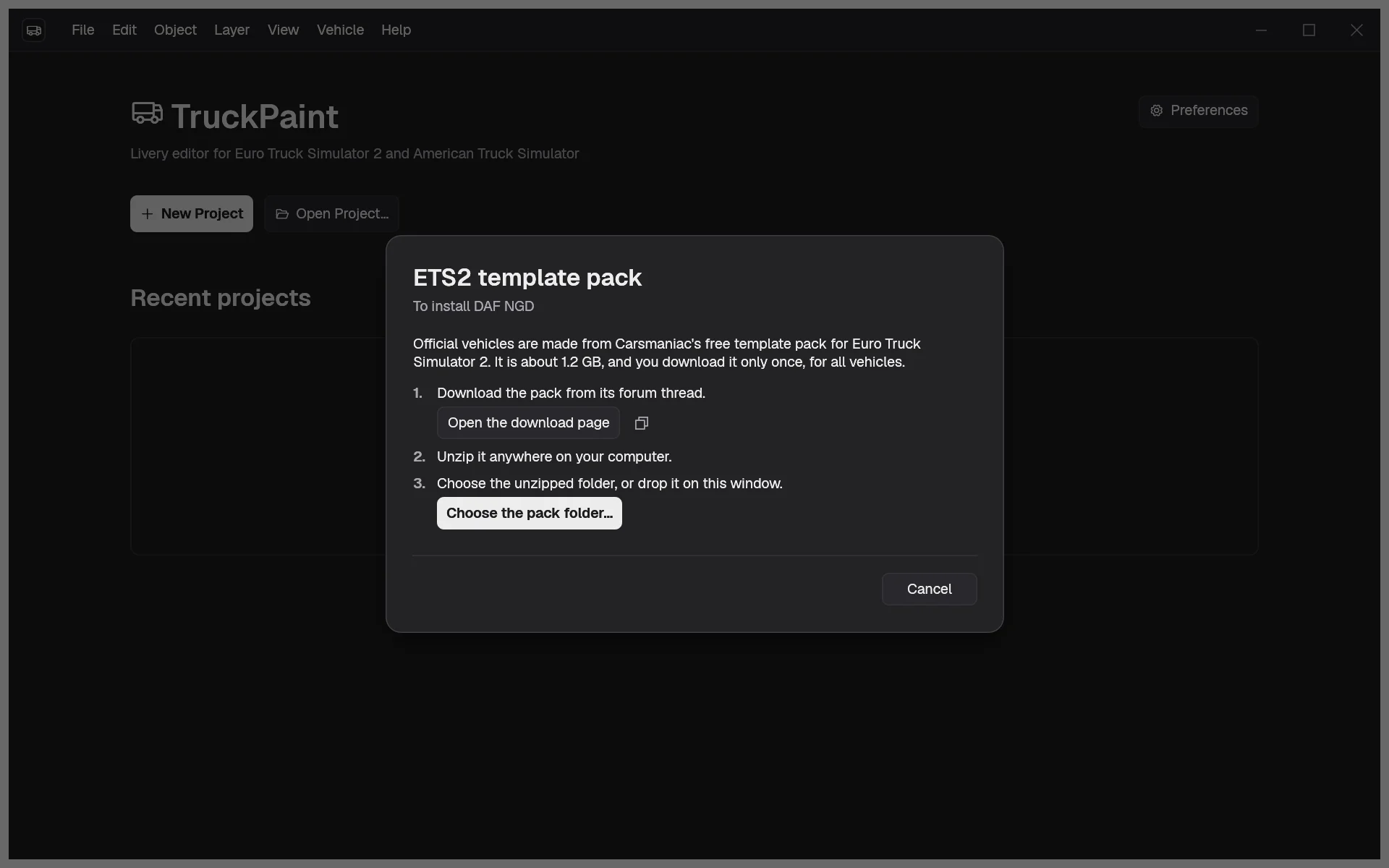
- In New Project or Add Vehicle…, check an official vehicle, for example the DAF NGD. The template pack dialog opens.
- Click Open the download page. Your web browser opens the pack’s thread on the SCS Software forum. If the browser doesn’t open, click Copy the link and paste the link into it.
- Download the pack. It is about 1.2 GB, and one pack serves every vehicle of the game.
- Unzip it anywhere on your computer.
- Back in TruckPaint, click Choose the pack folder… and choose the unzipped folder, or drop the folder on the dialog.
TruckPaint shows “Installing…” while it builds the vehicle from the pack’s files, with a Cancel button. The vehicle is then checked like any installed vehicle: its first main texture and every accessory are checked.
The folder you choose may be the pack’s own folder or the folder you unzipped it into. If it doesn’t hold the pack of that game, TruckPaint says so and asks again.
After the first time
Section titled “After the first time”TruckPaint remembers the pack folder of each game. Picking another official vehicle installs it straight away, without asking.
An installed official vehicle no longer needs the pack: it keeps working in your projects and in the lists even if you move or delete the pack. If the pack is gone when you install another official vehicle, the template pack dialog opens again and says that the folder was moved or deleted.
To change or forget a pack folder, open Preferences and go to Template packs: Choose Folder… picks another folder (for example the pack of a newer game version) and Clear forgets it. Neither changes the vehicles already installed nor your projects. A folder that no longer exists shows Folder not found.
When an installation fails
Section titled “When an installation fails”Nothing is installed, and a message says why, when:
- a file the vehicle needs is missing from the pack: the message names the vehicle and the file;
- a template doesn’t have the expected size: the pack may be for another game version. Download the pack that matches your game.