The Vehicle Library
TruckPaint paints vehicles it knows through vehicle packages. A package (a .tpv file) describes one truck or trailer: the templates of its textures, and the game data a mod needs, such as the vehicle’s path in the game, the internal names of its cabins and the ids of its accessories. Every package has a version, so a vehicle can follow the game’s updates.
Your vehicles come from four places:
- the official vehicles of the game, which TruckPaint builds from Carsmaniac’s template pack: see Official vehicles;
- the sample vehicles that come with TruckPaint, a truck and a trailer drawn for it, to try the app without game files;
- custom vehicles you make yourself from template files: see Custom vehicles;
.tpvfiles someone shared with you.
Open the Vehicle Library
Section titled “Open the Vehicle Library”Choose Vehicle › Vehicle Library…. It works from the home screen too, with no project open.
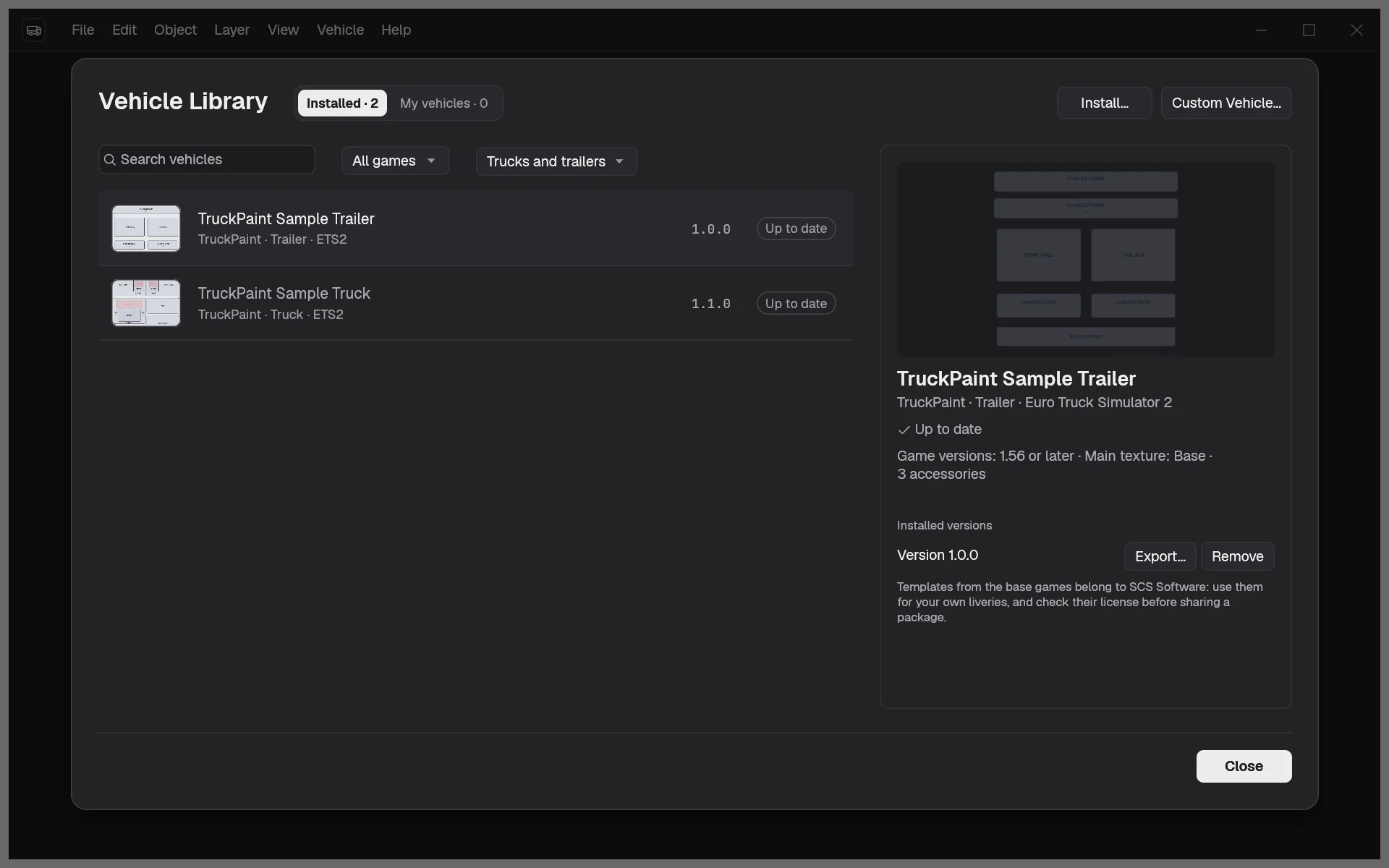
The dialog has two tabs: Installed, with every installed vehicle, and a second tab with only your custom vehicles. Each tab shows how many vehicles it holds. Above the list, search by name or brand, and filter by game and by kind.
Each row shows the vehicle’s name, brand, kind and game, its newest installed version, and a status:
- Custom: a vehicle you made with Custom Vehicle…;
- Update: the open project uses an older version of this vehicle than the newest one installed;
- Up to date: everything else.
Read a vehicle’s details
Section titled “Read a vehicle’s details”Click a vehicle to see its details on the right: a preview of its template, its name, brand, kind and game, the game versions it supports, and its paint job (the names of its main textures and its number of accessories).
Under Installed versions, every installed version of the vehicle is listed. Several versions can be installed side by side: a project keeps the version it was made with until you update it.
Install a package
Section titled “Install a package”Click Install… and choose one or more .tpv files. You can also drop .tpv files on the home screen or on an open project. A confirmation names each vehicle and version installed. Installing a version that is already there replaces it.
With no vehicle installed, the library explains what packages are and offers Install the sample vehicles.
Update a project’s vehicle
Section titled “Update a project’s vehicle”When the status of a vehicle reads Update, its details offer Update Template…. It closes the library and moves that vehicle of the open project to the newer version: the templates are replaced and your artwork is kept. Textures whose layout changed are marked to check. You can also start it from the vehicle’s card in the Project space.
Share or remove a version
Section titled “Share or remove a version”Next to each installed version:
- Export… saves that version as a
.tpvfile, to give to a friend or keep as a backup. Templates taken from the base games belong to SCS Software: check that you may share them. - Remove deletes that version from the library, after a confirmation. Your projects are never changed: each project keeps a copy of its templates.
A custom vehicle also offers New Version…, to make its next version after a game update: see Custom vehicles.