Export the mod
Export Mod turns your project into one ready-to-install mod: a single .scs file that holds the paint job of every vehicle of the fleet, with its textures, its shop icon and its entry in the game’s Mod Manager.
Fill in the mod information
Section titled “Fill in the mod information”The mod’s settings belong to the project. Edit them in the Project space (Ctrl+1, ⌘ on macOS), in the Mod information column on the right. Each change is saved with the project and can be undone.
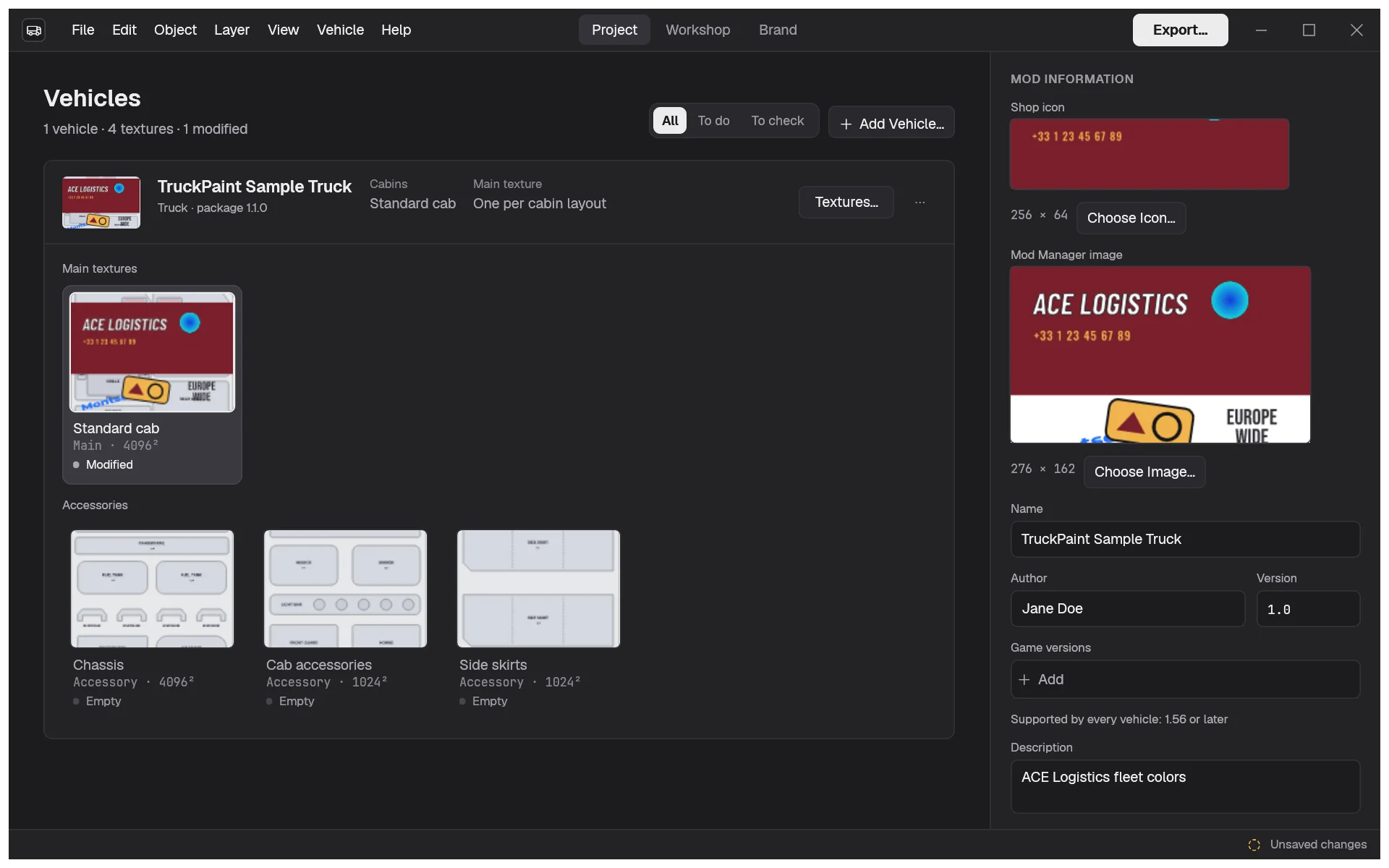
- Shop icon (256 × 64) and Mod Manager image (276 × 162): generated from your first main texture. To use your own picture, click Choose Icon… or Choose Image…, or drop a PNG or JPEG file on the preview. Use Generated Icon and Use Generated Image bring the generated picture back.
- Name: the paint job’s name in the shop and the mod’s name in the Mod Manager. It starts as the project name.
- Author and Version (
1.0at first), shown in the Mod Manager. - Game versions: the game versions your mod is made for, written as the game writes them, such as
1.56.*. Click Add to add one, or several separated by commas. Below the list, TruckPaint shows the versions every vehicle of the project supports. - Description: shown in the Mod Manager. TruckPaint adds the list of vehicles the mod paints.
- Price (5000 at first) and Unlock level (0): what the paint job costs in the game’s currency, and the player level that unlocks it.
- Advanced › Internal name: the paint job’s identifier in the game files, made from the Name (only a–z, 0–9 and _). Change it if you want, keeping it unique to you, so that your mods don’t collide with others.
Fix what blocks the export
Section titled “Fix what blocks the export”Under Before exporting, the column lists what must be fixed first, with Show to jump to the right field or vehicle card. The most common ones:
- the Name is empty, or the Name, Version or Author contains
",\or a line break; - the Price is 0;
- the internal name is too long: at most 12 characters, or 10 when a truck of the project has one main texture per cabin layout;
- a game version is badly written, or not supported by one of your vehicles;
- a vehicle’s game data is missing, or two vehicles are the same vehicle in the game.
The same list also shows warnings that don’t block the export: empty textures are exported transparent, so the game’s base color shows; textures To check after a template update deserve a look. See the Project space.
Export the mod
Section titled “Export the mod”- Click Export… in the top bar, from any space, or choose File › Export Mod… (Ctrl+E).
- Check the summary: each vehicle with the textures it paints, and the cabins left unpainted.
- Check the Destination, and click Change… to choose another file.
- Click Export.
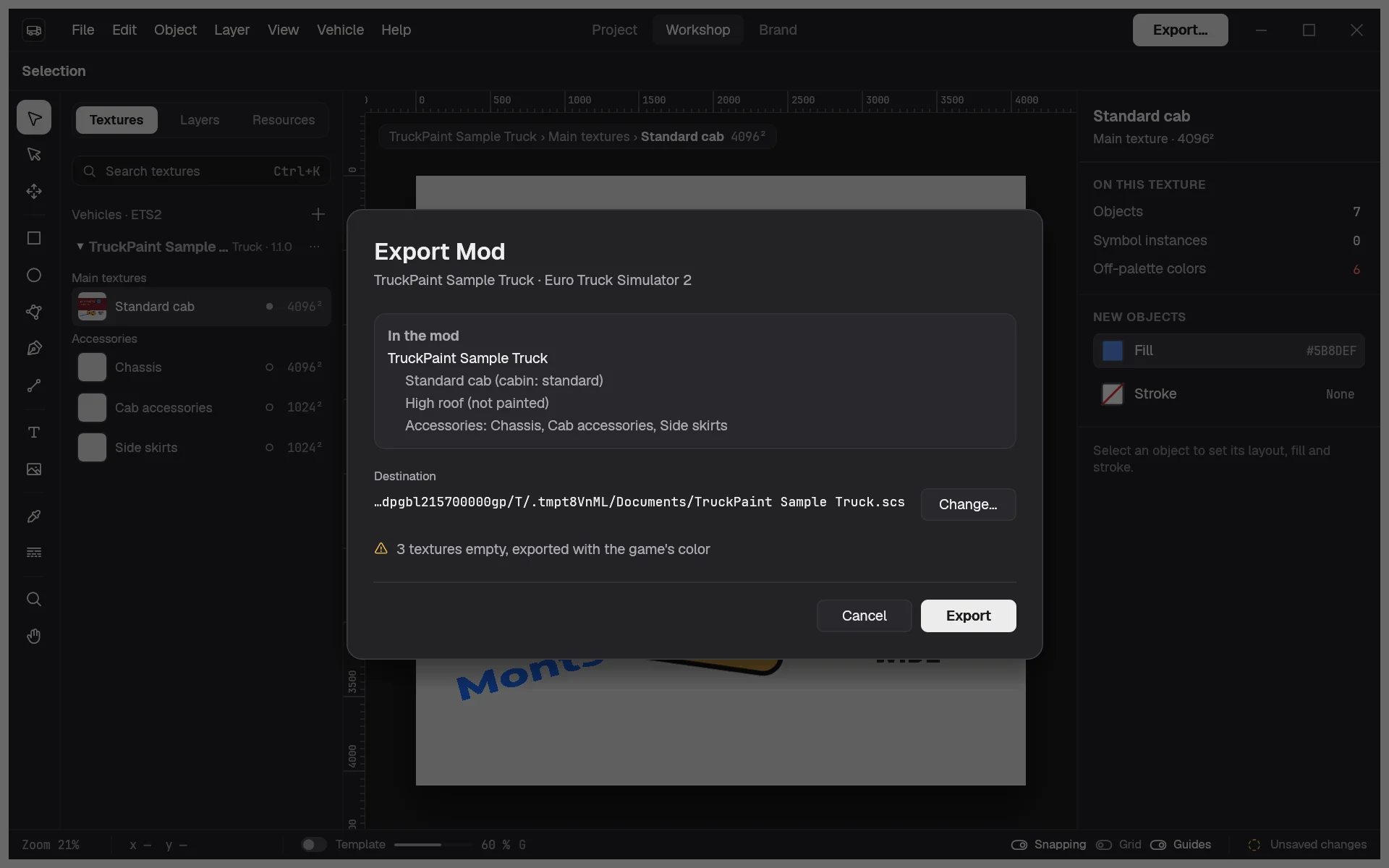
Export stays disabled while a problem remains, and the problems are listed above the buttons. Their Show button closes the dialog and takes you to the field to fix. If the file already exists, TruckPaint asks before replacing it.
The export runs in the background with its progress; cancelling leaves no file behind and an earlier export untouched. It never changes your project.
Where the mod goes
Section titled “Where the mod goes”The dialog proposes “Name.scs” in the game’s mod folder, when that folder exists:
| Euro Truck Simulator 2 | American Truck Simulator | |
|---|---|---|
| Windows | Documents\Euro Truck Simulator 2\mod |
Documents\American Truck Simulator\mod |
| macOS | ~/Library/Application Support/Euro Truck Simulator 2/mod |
~/Library/Application Support/American Truck Simulator/mod |
| Linux | ~/.local/share/Euro Truck Simulator 2/mod |
~/.local/share/American Truck Simulator/mod |
Otherwise it proposes your Documents folder: move the file into the game’s mod folder yourself.
Enable the mod in the game
Section titled “Enable the mod in the game”- Start the game and open the Mod Manager from the profile screen.
- Find your mod by its name and picture, enable it, and confirm.
- Load your profile and buy the paint job, under its Name, for your truck or trailer.
The textures are written as DDS with mipmaps, at each texture’s full size. Templates are never included.