Text and images
Company names, phone numbers and logos are the heart of most liveries. Texts stay editable on the texture until you export; images keep their original file, and SVG logos stay sharp at any size.
Write a text
Section titled “Write a text”- Pick the Text tool (T).
- Click on the texture where the text should start.
- Type. Enter starts a new line.
- Press Escape, or click outside the text, to finish.
To change a text later, double-click it with the Selection tool, click it with the Text tool, select it and press Enter, or choose Object › Edit Text. While you type, the usual editing keys work: arrows, Home and End, Shift to select, Ctrl+A (⌘A on macOS) to select all the text, copy and paste. Tool shortcuts are off while you type, so letters go into the text.
A text left empty is deleted when you finish. A whole editing session is one undo step.
Style a text
Section titled “Style a text”When a text is selected, the inspector shows a Text section:
- Font family: a searchable list where each family is shown in its own font;
- Font weight and Italic;
- Size, in texture pixels;
- alignment: Align left, Align center, Align right;
- Letter spacing and Line height.
The text’s color, outline and shadow are set in the Appearance section, as for shapes (see Color and gradients). Dragging a text’s handles scales it.
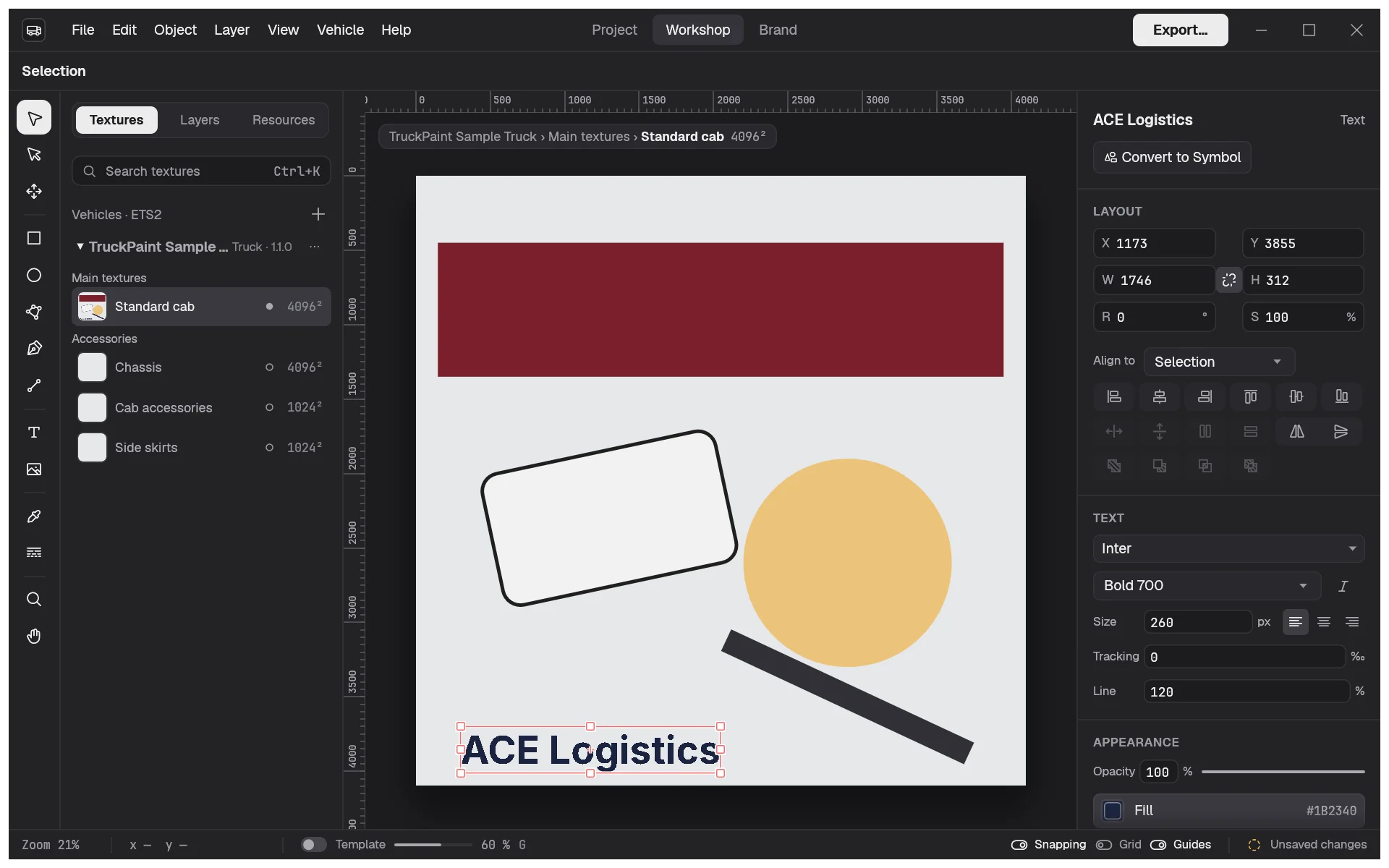
TruckPaint comes with Inter, Barlow Condensed, Oswald, Bebas Neue and Montserrat, available on every computer, followed by the fonts installed on yours. New texts use Inter Bold at 200 px. To set the style of the next texts, pick the Text tool with nothing selected and change the Text section.
Create outlines
Section titled “Create outlines”Object › Create Outlines (Ctrl+Shift+O) turns the selected texts into groups of letter paths that look exactly the same. Use it to reshape letters with the Direct Selection tool, to combine them with shapes, or to stop depending on a font. The letters can’t be edited as text afterwards, except with Undo.
Place images
Section titled “Place images”Bring in a logo or a picture as a PNG, JPEG or SVG file:
- File › Place… (Ctrl+Shift+P), which accepts several files at once;
- the Image tool (Shift+I): click where the image should go, then choose the file;
- drag files from your file manager onto the window.
The image keeps its proportions and its natural size, scaled down to half the texture if it is larger. You can then move, resize (Shift keeps the proportions), rotate, flip, hide, lock, group and duplicate it like any object, and give it an opacity and a shadow. Images have no fill or stroke.
SVG files stay vector: TruckPaint keeps the SVG itself and redraws it sharply at every zoom.
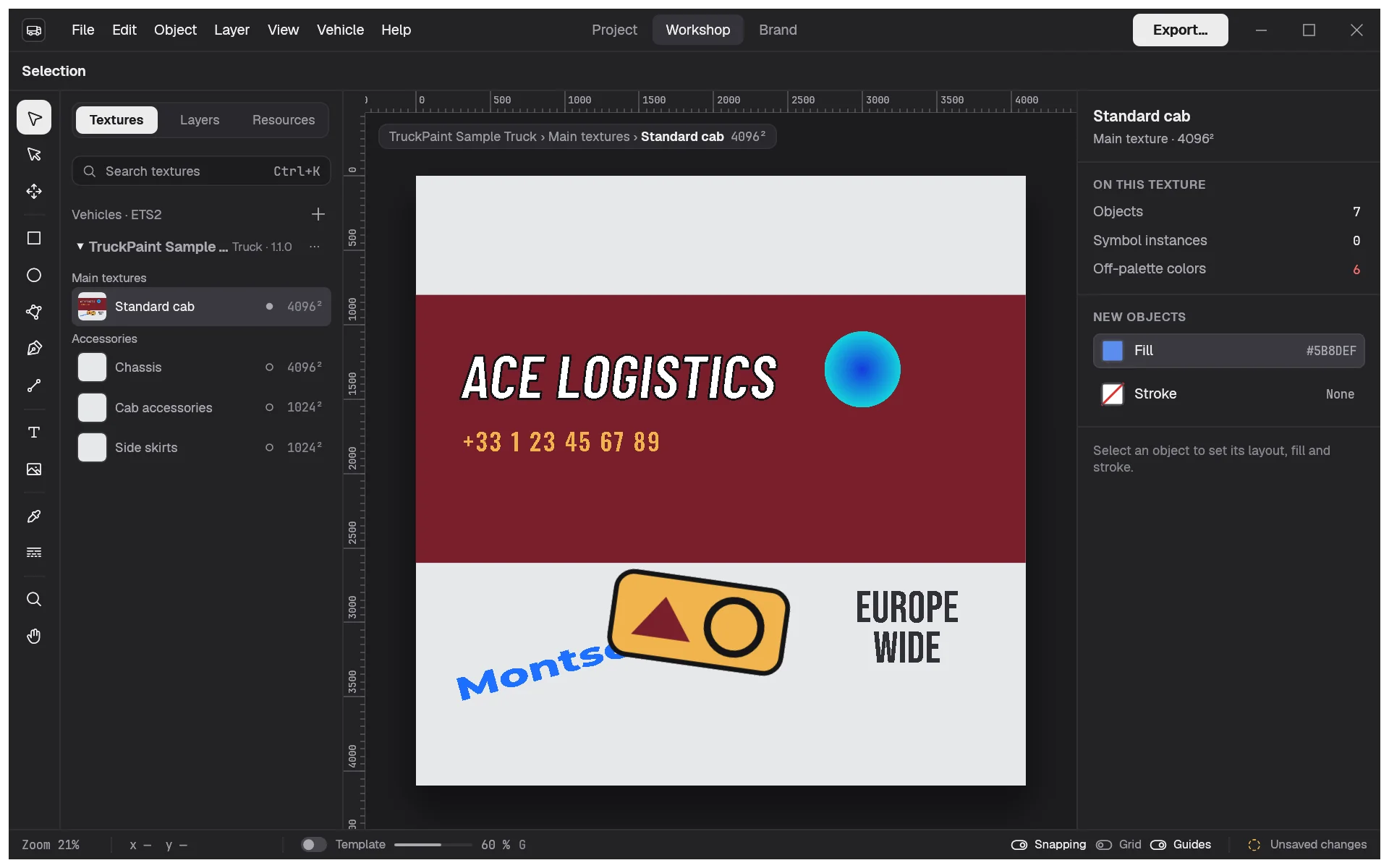
When an image is selected, the inspector’s Image section shows its name, its kind and its source size, and Reset Size brings it back to its placed size and proportions.
Every image you place is listed in the Images section of the Resources tab, so you can drag it onto other textures. Placing the same file twice stores it once. A file that isn’t a valid PNG, JPEG or SVG is skipped with a message naming it and the reason; the other files are still placed.
To reuse a logo on every texture and update it in one place, make it a symbol.