Export a texture
To put your paint job in the game, export the mod: it writes every texture of the fleet for you. Export a single texture when you want to look at it in an image editor, share a preview, or build a mod by hand.
Export the active texture
Section titled “Export the active texture”- Open the texture you want in the Workshop.
- Choose File › Export Texture…, or press Shift+Ctrl+E (⌘ on macOS).
- Pick the format, size and background, and check the preview.
- Click Export…, then choose where to save the file.
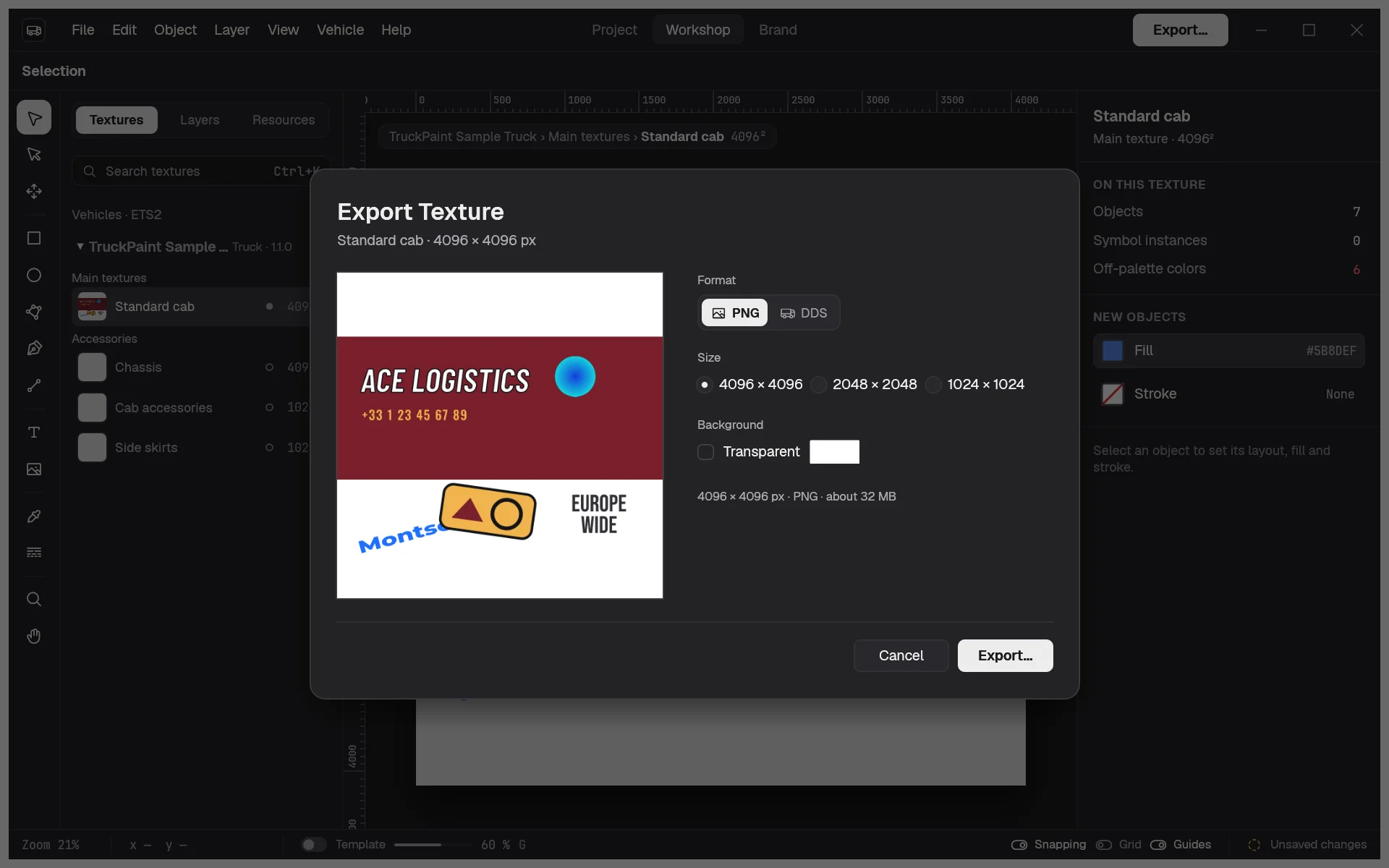
The proposed file name reads “project name - vehicle name - texture name”, with the format’s extension.
Ctrl+E without Shift opens Export Mod… instead.
Choose the settings
Section titled “Choose the settings”- Format: PNG, or DDS, the format the games read.
- Size: the texture’s full size by default, or half or a quarter of it, for a lighter file.
- Background: white by default. Click the color to choose another one, or check Transparent to keep the areas without artwork transparent; the preview then shows a checkerboard there.
- DDS encoding (DDS only): BC3 / DXT5 (recommended), compressed with transparency kept, or Uncompressed RGBA, larger but exact.
The preview shows exactly what will be written, with the pixel size, the format and an estimated file size. It updates as you change the settings. The dialog remembers your last choices until you quit TruckPaint.
What ends up in the image
Section titled “What ends up in the image”- Everything visible on the texture, drawn as on the canvas: colors, gradients, strokes, drop shadows, texts and images. SVG logos stay sharp at any size.
- Locked objects are included; hidden objects and hidden groups are not.
- The template is never exported: it only guides you while you paint.
- Anything that sticks out of the texture is cut at its edges.
A DDS file comes with all its mipmaps, the smaller copies the game uses for distant vehicles.
While it exports
Section titled “While it exports”Large textures take a moment. The dialog shows the progress with a Cancel button; cancelling leaves no partial file behind. When the export is done, a message names the file. Exporting never changes your project: it stays saved if it was saved.
While you are editing a symbol, Export Texture… is disabled: click Done first to go back to a texture.